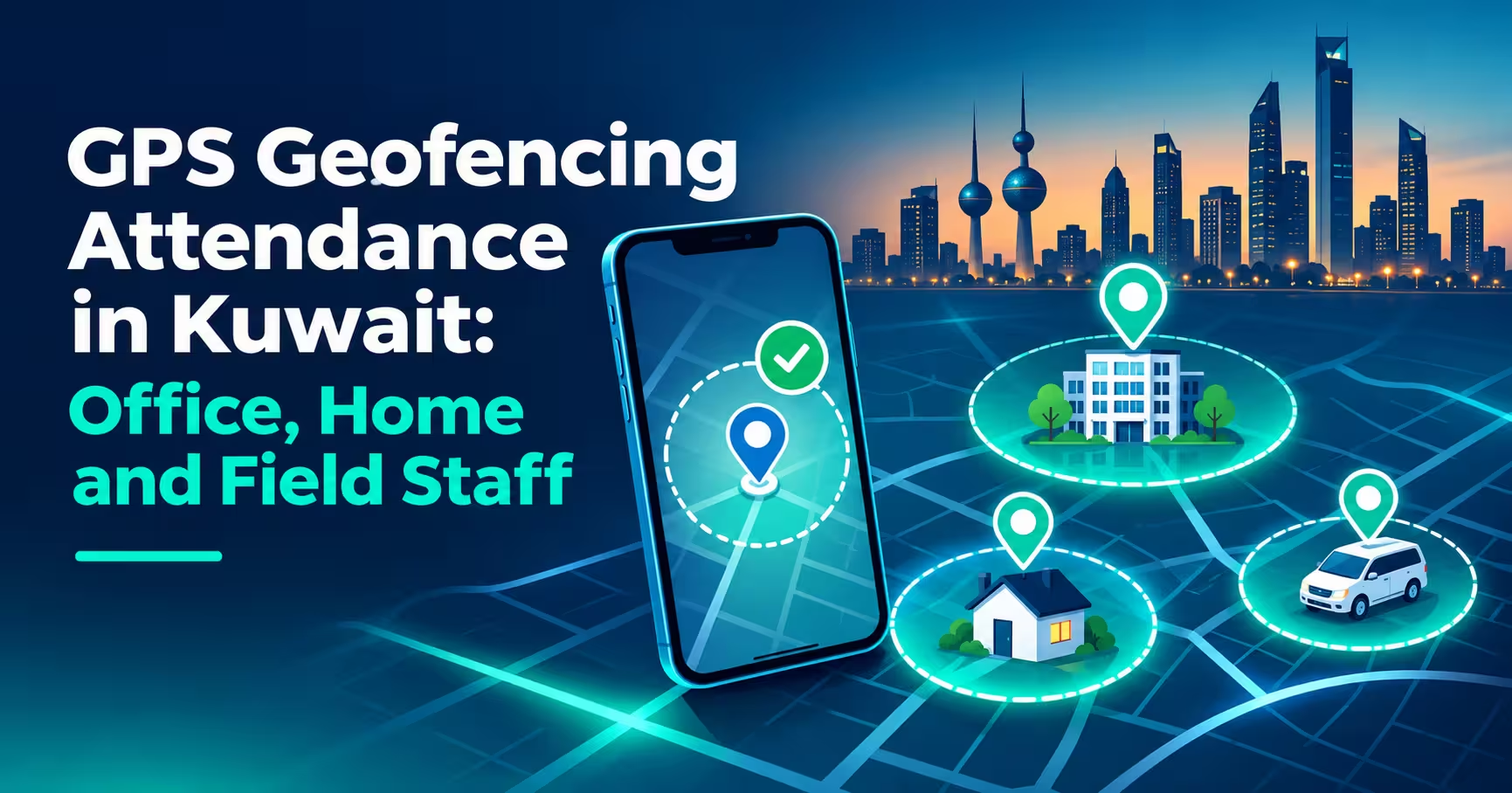

GPS attendance Kuwait companies use today solves a problem that fixed fingerprint machines cannot: how to record attendance for people who are not standing at the office door. Office staff, hybrid employees working from home and field sales teams all need different rules. Geofencing lets a company set those rules by location, so a punch is only accepted where it should be. This guide explains the three geofence modes in RightTime by Merak Tech (office, home and salesperson), how a mobile punch works, and how to set it up fairly.
In this guide
- What Is GPS Geofencing Attendance?
- The Three Geofence Modes
- Office Geofencing
- Home Geofencing for Hybrid and Remote Staff
- Salesperson Mode for Field Teams
- How a Mobile Punch Works
- Controls HR Can Switch On or Off
- Limits of GPS and How to Handle Them
- Location Privacy and Fair Use
- Setup Checklist
- Common Mistakes
- Frequently Asked Questions
- Final Thoughts
What Is GPS Geofencing Attendance?
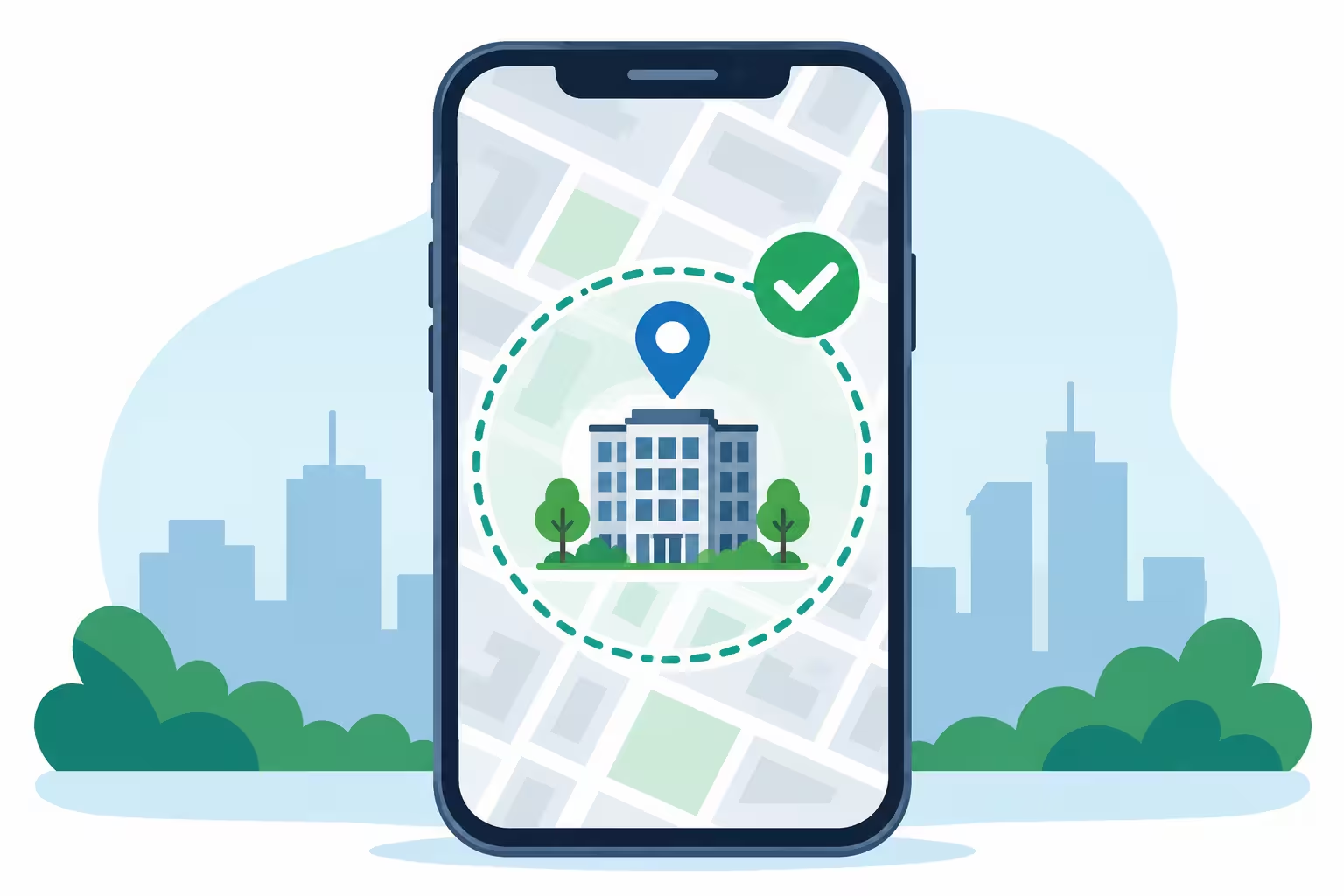
A geofence is a virtual boundary drawn around a location, usually a circle with a set radius. In a GPS attendance system, the employee’s phone reports its position when they punch in or out. The system compares that position with the allowed area. If the phone is inside, the punch is accepted. If it is outside, it is rejected or flagged for review.
For Kuwait businesses with branches, remote staff and sales teams, this means one attendance system can follow different rules for different people without a separate process for each group. For the bigger picture, see our guide to a time attendance system in Kuwait.
The Three Geofence Modes
| Mode | Rule | Best For |
|---|---|---|
| Office geofencing | The punch must be inside a fixed radius around the office location. | Office, branch and site staff who work at a known place. |
| Home geofencing | The punch must be inside an approved radius around the employee’s registered home location. | Remote and hybrid employees. |
| Salesperson mode | No fixed fence. The system records the GPS position and street address at each punch. | Sales representatives and field staff visiting clients. |
Office Geofencing
Office geofencing is the simplest mode. HR sets the office coordinates and a radius, for example 50 meters. When an employee punches from the mobile app, the system checks their phone position against that boundary, using Google Maps location services to measure the distance.
- Stops off-site punching: an employee cannot record arrival from the car park of another building or from home.
- Works for several locations: each office or branch can have its own fence.
- Complements fingerprint devices: use machines at the door and mobile geofencing for people who move between sites.
Home Geofencing for Hybrid and Remote Staff
Hybrid work creates a real attendance question: how do you record remote days without trusting a message that says “I’m working”? Home geofencing answers it by registering each employee’s approved home location and a radius around it. The employee can punch from inside that radius and nowhere else.
- Per-employee setup: every person has their own registered location, not a shared one.
- Pre-approved by HR: remote check-ins only work for people who have been given the permission.
- Clear policy: HR can allow home punching for some roles and not others.
- Consistent records: remote days appear in the same reports as office days.
Salesperson Mode for Field Teams
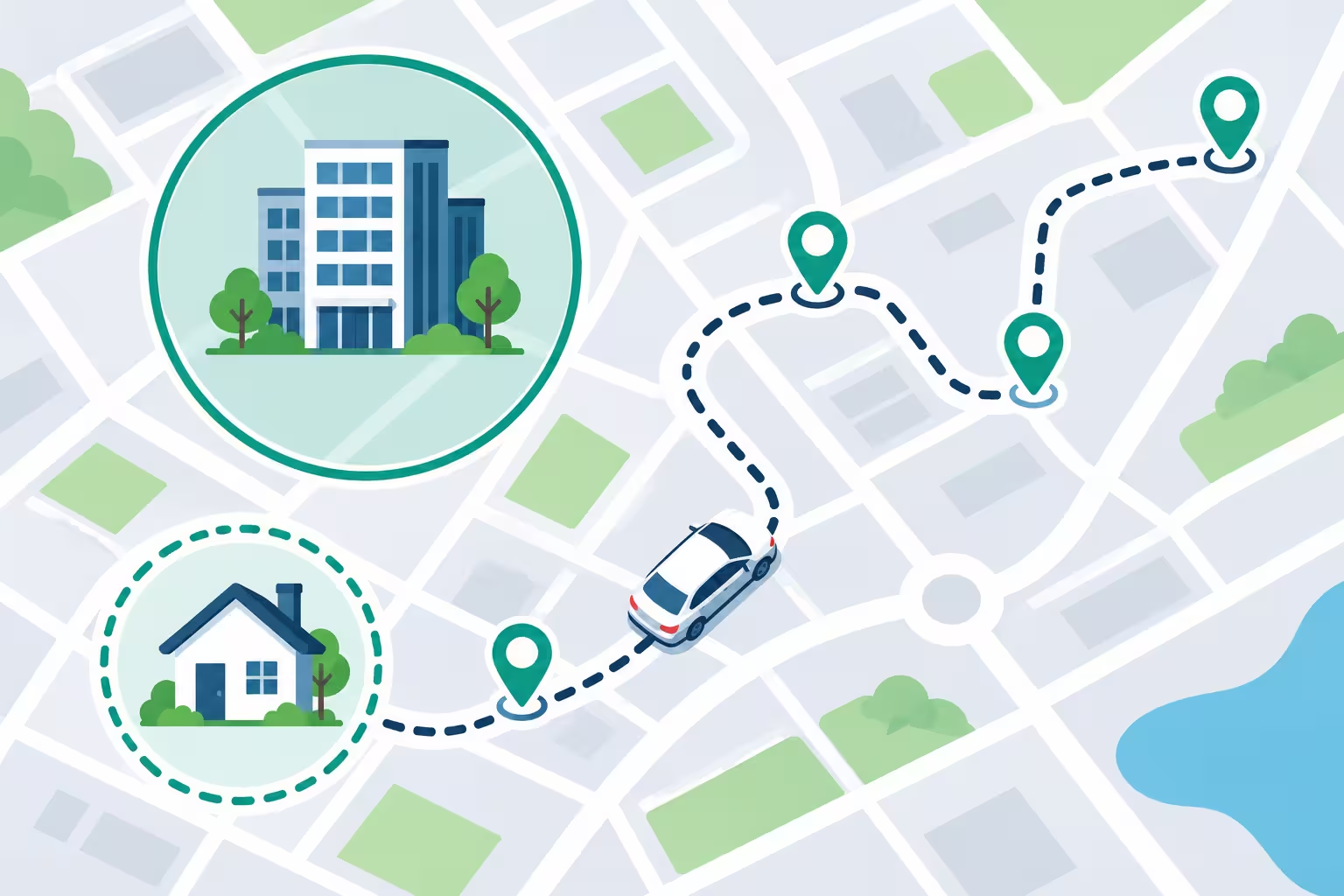
A salesperson’s workday is not tied to one place, so a fixed fence does not fit. Salesperson mode bypasses stationary fences and records where the employee actually is when they punch.
- Arrival check-in: the salesperson taps “Punch In (Sales)” at the client site. The app captures GPS coordinates, converts them to a street address and can require a live selfie check.
- Meeting details: they enter the client or company name, the purpose of the visit and any pre-meeting notes.
- Departure check-out: they tap “Punch Out (Sales)” when the meeting ends to record visit duration and outcome notes.
- Multiple visits per day: each client visit gets its own check-in and check-out.
For managers, this turns a vague “I was with clients all day” into a log of visits with times, addresses and notes.
How a Mobile Punch Works
| Step | What Happens |
|---|---|
| 1. Login | The employee signs in. The app loads that person’s permissions from the system. |
| 2. Geofence check | The phone position is compared with the allowed office or home area, or recorded for salesperson mode. |
| 3. Face check (if enabled) | A live face check confirms the right person is punching. |
| 4. Reason or sales note | Where needed, such as a client visit, the employee adds a note. |
| 5. Server sync | The punch is saved to the central system and appears in HR dashboards and reports. |
Controls HR Can Switch On or Off
Good geofencing is flexible. Administrators can change permissions without waiting for a software update:
- Mobile punching permission: decide who can punch from the mobile app. If it is off for a person, the app shows their logs in read-only mode.
- AI face detection: requires a live face check before a punch is accepted to block static photo spoofing and punching for someone else.
- Per-person and per-role rules: office staff, remote staff, and salespeople can each follow different settings.
Limits of GPS and How to Handle Them
GPS is useful but not perfect, so plan for the following:
- Indoor accuracy: signals can be weaker inside tall or basement buildings, so choose a radius that allows normal movement around the site.
- Radius size: too small causes false rejections, too large lets people punch from the street or a neighboring building.
- Phone settings: employees must allow location access for the attendance app.
- Exception process: have a simple way for HR to review and approve a punch that failed because of a signal problem, with the reason recorded.
- Use biometrics where they fit best: a fixed fingerprint machine is still the most reliable choice for a busy office entrance.
Location Privacy and Fair Use
Location is personal data, so treat it with care:
- Tell employees what is recorded, when, and why, before rollout.
- Collect only what you need for attendance, and limit who can view it.
- Get home locations from employees themselves and explain how they will be used.
- Write a clear policy for remote work, missed punches and exceptions.
- Review local data protection requirements, and take legal advice if you are unsure.
Setup Checklist
- List your locations: offices, branches, sites and remote staff.
- Decide which employees use which mode (office, home or salesperson).
- Set office coordinates and a realistic radius for each location.
- Register approved home locations for hybrid employees who need them.
- Decide whether to require face detection for mobile punches.
- Test punches inside and outside each fence on real phones.
- Train employees, including how to enable location access and what to do if a punch fails.
- Pilot with one team, review the exceptions, then roll out to everyone.
Common Mistakes
- Using one radius for every location without testing it.
- Giving every employee the same rules instead of matching office, remote and field roles.
- Skipping the face check, then discovering one person punching for another.
- No exception process, so genuine GPS problems turn into disputes.
- Rolling out without telling employees how location data is used.
- Expecting mobile GPS to replace every fingerprint device.
Frequently Asked Questions
What is GPS geofencing attendance?
It is attendance recording where a punch is accepted only when the employee’s phone is inside an approved area, such as the office or a registered home location.
Can remote or hybrid employees punch from home?
Yes, with home geofencing. HR registers an approved home location and radius for each employee who has the permission.
How does it work for salespeople who visit clients?
Salesperson mode removes the fixed fence. The employee punches in and out at each client visit, and the system records GPS coordinates, the street address, the client name and meeting notes.
Can someone fake their location or punch for a colleague?
No system is perfect, but combining geofencing with a live face check makes it much harder. HR can also review punches and exceptions in reports.
Do I still need fingerprint machines?
Often yes. Fingerprint devices suit busy office entrances, while GPS mobile attendance covers remote, field and multi-site staff. RightTime supports both in one system.
Is employee location data private?
It should be treated as personal data. Tell employees what is collected and why, limit access, and follow your local data protection requirements.
Final Thoughts
The best GPS attendance Kuwait companies can run matches the rule to the role: a fixed fence for office staff, a registered home area for hybrid employees, and visit logging for the field team. Add a face check where trust matters, give HR a simple exception process, and be open with employees about what is recorded. That keeps attendance accurate and fair wherever people work.
Want to see GPS geofencing in RightTime?
Request a free consultation or demo from Merak Tech. Contact us here.