
Odoo POS Kuwait retailers set up can run every shop from one system: sales, stock, accounting, and reporting all update together. For a Kuwait business, the two things that matter most are accepting KNET at the counter and managing several branches without chaos. This guide explains how Odoo POS works, how to approach KNET payments, how to structure a multi-branch setup, and what to test before you go live.
In this guide
What Is Odoo POS?
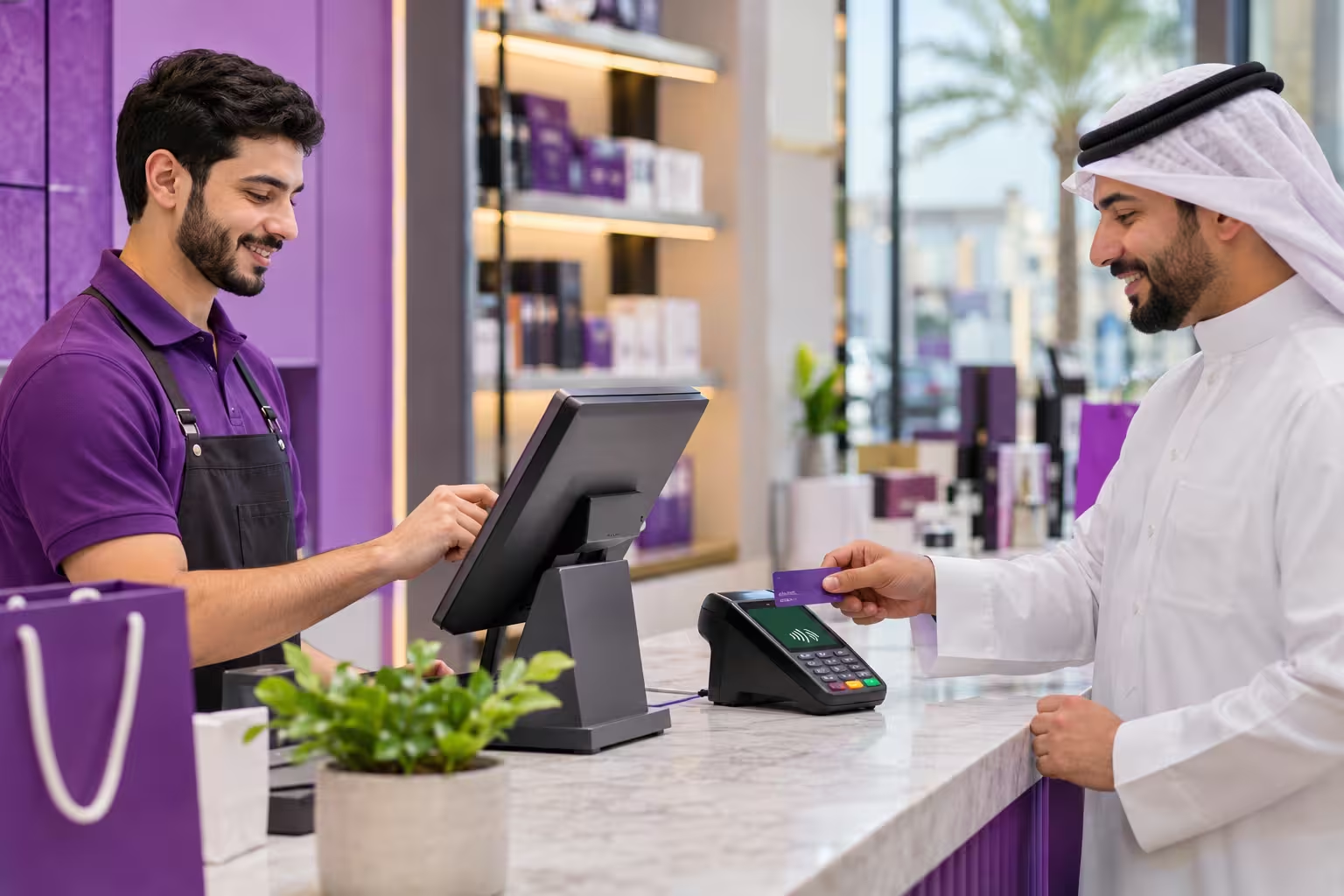
Odoo POS is the point of sale app inside the Odoo business platform. Cashiers sell from a touchscreen, tablet or computer running in a web browser. Every sale updates inventory and accounting automatically, because the POS is part of the same system as Sales, Inventory, Purchase and Accounting. You can read the official feature overview on the Odoo Point of Sale page.
Why Kuwait Retailers Choose It
- One system for everything: no re-entering sales into accounting or stock sheets.
- Live stock: see quantities by branch and warehouse as items sell.
- Runs on common hardware: tablets, PCs and standard receipt printers and scanners.
- Offline resilience: the POS can keep selling during internet drops and sync afterwards.
- Loyalty, discounts and promotions: run offers from the same system.
- Flexible reports: sales by branch, cashier, product and payment method.
- Grows with you: add e-commerce, purchasing, CRM or manufacturing later.
Accepting KNET in Odoo POS
Almost every customer in Kuwait expects to pay by KNET. How you connect it depends on your bank, your payment terminal and your Odoo setup, so confirm the approach before you buy hardware.
| Approach | How It Works | Consider |
|---|---|---|
| Standalone bank terminal | The cashier takes the card payment on the bank’s terminal, then records a KNET or card payment method in the POS. | Simple and widely used. The amount is typed on both devices, so train staff to avoid mismatches. |
| Integrated terminal | The POS sends the amount to a compatible terminal, which returns the result automatically. | Fewer errors, but it depends on the terminal and the integration available for your bank. Ask your partner what is supported. |
| Online payment link or gateway | Used for e-commerce, pay-by-link and remote orders. | Good for web and delivery orders. It may need a gateway integration or a custom module. |
Whichever route you pick, set up separate payment methods in the POS for cash, KNET and credit card, so end-of-day reports reconcile against the bank’s settlement. Ask your Odoo partner to demonstrate your exact KNET flow in a test environment before you commit to hardware.
Multi-Branch Setup
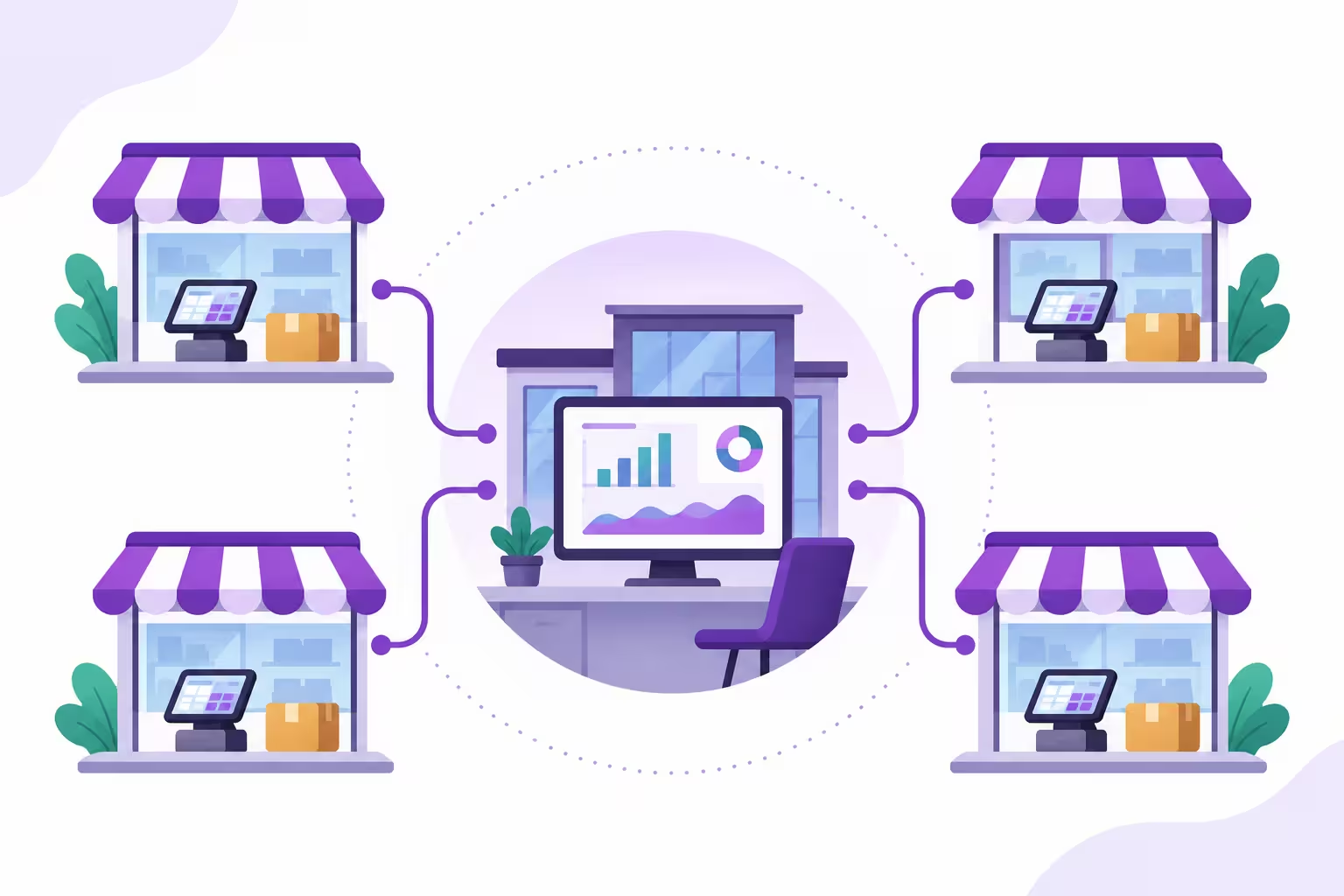
An Odoo POS Kuwait rollout across several shops needs a clear structure from day one. The main decisions are:
| Decision | Options and Advice |
|---|---|
| Company structure | One company with several POS and warehouses, or separate companies for separate legal entities. Ask your accountant first. |
| Warehouses | One warehouse per branch, plus a central warehouse if you hold stock centrally. |
| POS configurations | One POS configuration per branch or counter, each with its own payment methods, printers and sequences. |
| Pricing | Common price lists for all branches, or branch-specific lists and promotions. |
| Stock transfers | Define how stock moves between branches, and who approves it. |
| User access | Cashiers see only their branch. Managers see their branches. Head office sees everything. |
| Reporting | Decide which branch-level and consolidated reports management needs. |
Setup Steps
- Map your retail process. Walk through a day in the shop: opening, selling, returns, cash drawer, closing and stock counts.
- Design the structure. Decide on companies, warehouses, branches and user roles.
- Prepare product data. Clean names, barcodes, categories, prices, costs and units before importing.
- Configure the POS. Set up payment methods, taxes if applicable, receipts, price lists and cashier permissions for each branch.
- Connect hardware. Receipt printers, barcode scanners, cash drawers, customer displays and the payment terminal.
- Load opening stock and balances. Reconcile quantities branch by branch.
- Train cashiers and managers. Use real products and real scenarios, including returns and exchanges.
- Run a pilot branch. Go live in one shop first, fix issues, then roll out to the others.
For the full project approach, read our step-by-step Odoo implementation guide for Kuwait.
Hardware You Will Need
| Item | Notes |
|---|---|
| Touchscreen, tablet or PC | Any modern device with a supported browser works. Use sturdy hardware for busy counters. |
| Receipt printer | Check compatibility with your Odoo version and connection method. |
| Barcode scanner | Most USB or Bluetooth scanners work like a keyboard. |
| Cash drawer | Usually connected through the receipt printer. |
| Payment terminal | Supplied by your bank or provider. Confirm KNET support and integration options. |
| Network and backup power | Reliable Wi-Fi or cable, and a UPS so a short outage doesn’t stop sales. |
What Matters Specifically in Kuwait
- Arabic and English receipts and product names.
- KWD with three decimals: check price, discount and total rounding.
- KNET reconciliation: match daily POS payments to the bank settlement.
- Peak seasons: plan capacity for sales periods and Ramadan shopping.
- Local support: a partner who can respond quickly during opening hours.
- Accounting setup: confirm your chart of accounts and, if relevant, structured reporting needs with your accountant.
Cost: What Drives the Price
| Cost Factor | What to Ask |
|---|---|
| Odoo edition and users | Which edition is needed, and how are users or apps counted? |
| Hosting | Cloud, partner-hosted or self-hosted, and who manages backups? |
| Implementation | Configuration, data import, branch rollout and training. |
| KNET integration | Is an integration needed, and is it a standard or custom build? |
| Hardware per branch | Devices, printers, scanners, drawers and terminals for each counter. |
| Customization | Custom receipts, reports, loyalty rules or approvals. |
| Support | Hours, response time and who to call when a till is down. |
What to Test Before Go-Live
- A full sale with cash, KNET, credit card and a split payment.
- Returns, exchanges and refunds, with manager approval where needed.
- Barcode scanning for every product type, including weighed or loose items if you sell them.
- Internet drop and recovery: sell offline, reconnect, confirm the orders sync.
- Opening and closing a cash session, and matching cash and KNET totals.
- Stock updates in the correct branch warehouse after sales.
- Stock transfer between two branches.
- Arabic and English receipt printing, including KWD amounts.
- User permissions: a cashier should not see other branches or change prices.
Common Mistakes
- Buying payment hardware before confirming the KNET flow.
- Skipping product data cleanup, which leads to wrong barcodes and prices at the till.
- Going live in all branches at once instead of piloting.
- Weak branch structure, making consolidated reporting messy later.
- No offline plan for internet drops during busy hours.
- Too little cashier training before opening day.
- Ignoring daily reconciliation, so differences stay hidden for weeks.
Frequently Asked Questions
Does Odoo POS support KNET?
KNET is usually handled through your bank’s payment terminal, either used alongside the POS or connected to it. The exact method depends on your bank, terminal and Odoo setup, so ask your partner to demonstrate it before buying hardware.
Can Odoo POS manage multiple branches?
Yes. You can configure separate POS terminals, warehouses, price lists and user access for each branch, with consolidated reporting for head office.
Does Odoo POS work offline?
It is designed to keep selling when the internet drops and sync the orders once the connection returns. Test this in your own shop during the pilot.
Can it handle Arabic receipts and KWD?
Yes, with proper configuration. Test receipt layouts and three-decimal amounts before go-live.
What hardware do I need?
A touchscreen device, receipt printer, barcode scanner, cash drawer, payment terminal and reliable network. Confirm compatibility with your partner before purchasing.
Is Odoo POS suitable for a single small shop?
Yes, especially if you want stock and accounting connected from the start. A small shop can begin with one POS and add branches or apps later.
Final Thoughts
A successful Odoo POS Kuwait rollout comes down to three things: a KNET flow you have tested end to end, a clean multi-branch structure, and well-trained cashiers. Pilot in one branch, check your daily reconciliation, and then roll out to the rest with confidence.
Planning Odoo POS for your shops?
Talk to [Your Company Name] about your branches, KNET setup and hardware, and request a demo. Contact us here.