
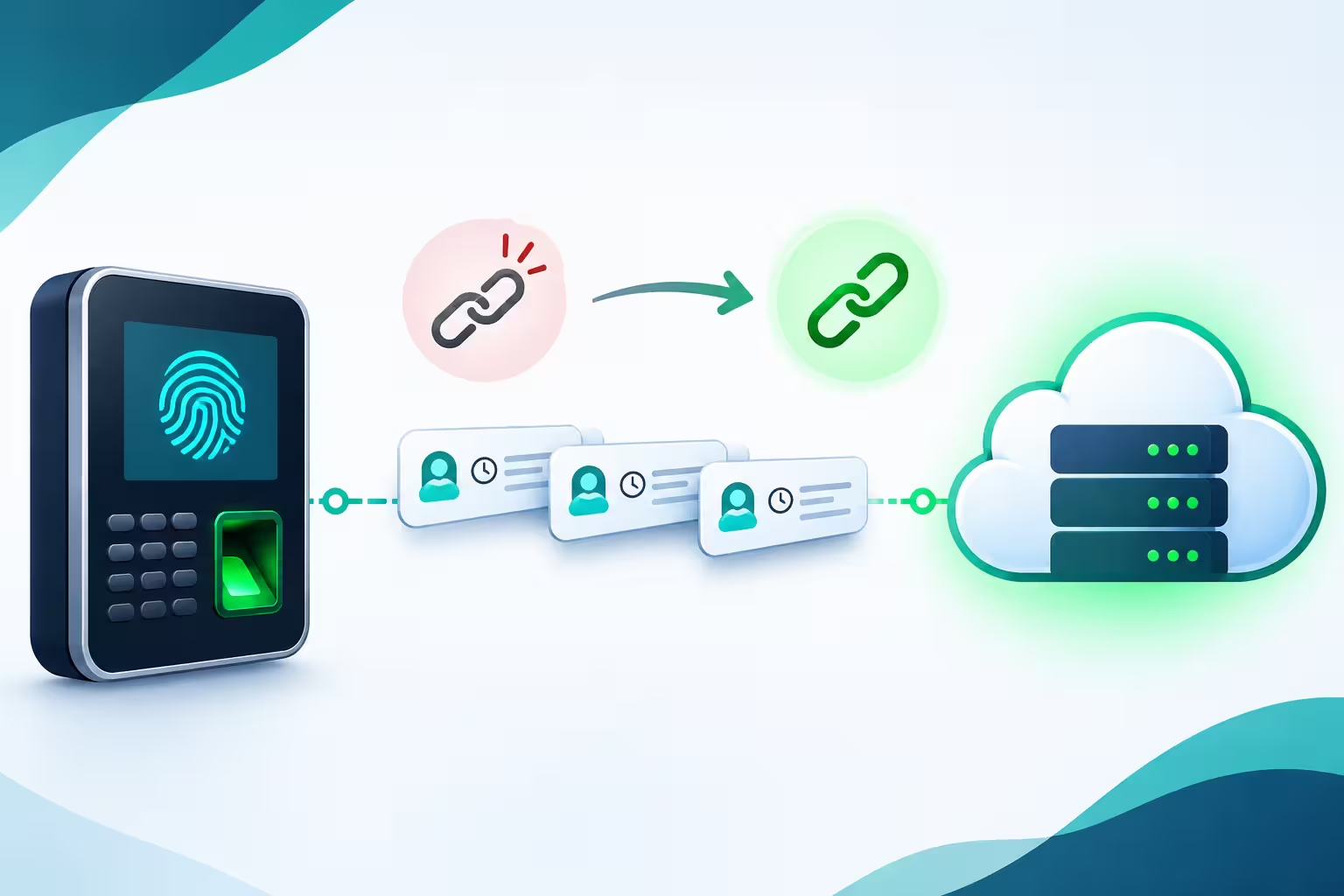
Fingerprint attendance offline is a question every company should ask before buying a system, because internet outages, router faults and network maintenance happen at the worst times, such as the morning rush when everyone is clocking in. A good system keeps recording and sends everything to the server when the connection returns. A weak one loses punches or creates gaps that HR has to fix by hand. This guide explains what happens to fingerprint attendance when the internet drops, how RightTime by Merak Tech handles it with offline buffering, automatic resend and a duplicate filter, and how to prepare your sites.
In this guide
- Why Offline Behavior Matters
- How Fingerprint Terminals Normally Send Data
- What Happens When the Internet Drops
- The Duplicate Filter: Stopping Double Punches
- Keeping Device Clocks Accurate
- Monitoring Devices: Online and Offline Status
- A Sample Outage Timeline
- Preparation Checklist for Your Sites
- What About Mobile Check-Ins?
- Questions to Ask Any Vendor
- Common Mistakes
- Frequently Asked Questions
- Final Thoughts

Why Offline Behavior Matters
If attendance depends on a live internet connection, every outage becomes an HR problem:
- Missing punches: employees clock in, but nothing reaches the server.
- Payroll disputes: people are marked absent or late for a day they actually worked.
- Manual fixes: HR rebuilds records from messages, memory, and paper.
- Queues at the door: staff wait or retry again and again, creating duplicate attempts.
- Loss of trust: employees stop believing the system is accurate.
For multi-site companies, branches in older buildings, basements, or remote areas are especially likely to have unstable connections, so offline behavior is not a minor feature. For the wider picture, see our guide to a time attendance system in Kuwait.
How Fingerprint Terminals Normally Send Data
In a connected setup, fingerprint terminals are linked to the central cloud server over secure communication. They are configured with static IP addresses, ports, and unique device IDs. When an employee punches, the terminal pushes the record to the server in real time, so HR dashboards and reports update immediately.
What Happens When the Internet Drops
When the connection fails, RightTime’s fingerprint terminals do not stop working. They continue to read fingerprints and store punch records locally on the device. When the network comes back, the stored logs are sent to the server automatically, in chronological order.
| Stage | What Happens |
|---|---|
| 1. Connection fails | The terminal can no longer reach the server, for example because of an internet or router fault. |
| 2. Employees keep punching. | The terminal continues to verify fingerprints and records each punch in its local memory. |
| 3. Connection returns | The terminal reconnects to the server. |
| 4. Automatic resend | Stored punches are transmitted to the server in the order they were captured. |
| 5. Reports catch-up | The records appear in dashboards and reports, as if there had been no outage. |
The practical result for HR is simple: no punch is lost, and nobody needs to re-enter the morning’s attendance by hand.
The Duplicate Filter: Stopping Double Punches
Outages and slow responses make people punch twice. Someone presses the sensor again because the screen is slow, or a queue builds up and the same person is scanned more than once. Without a filter, those become duplicate records that confuse reports.
- Automatic deduplication: RightTime drops duplicate punches captured within 60 seconds.
- Cleaner records: one real punch stays, and accidental repeats do not become extra entries.
- Safer resends: when buffered logs are sent after an outage, repeats are filtered rather than doubled.
Keeping Device Clocks Accurate
Offline records are only useful if the time on each device is right. A terminal that runs several minutes fast or slow will create wrong late and overtime results. RightTime’s server acts as a master time source and automatically synchronizes the hardware clocks periodically to prevent time drift. Timestamps in the database are standardized in UTC, which keeps records consistent across branches and time zones. For background on how clocks are kept in sync, see this overview of the Network Time Protocol.
Monitoring Devices: Online and Offline Status
You should know about a failed connection before employees complain. RightTime shows regular device heartbeats in the administration screens, with each terminal marked as online or offline.
- Spot problems early: a terminal showing offline for hours needs attention.
- Know which branch is affected: devices are identified by their Device IDs across branches.
- Support faster: IT or your provider can check the device state before sending someone to site.
A Sample Outage Timeline
This example shows how the process feels in practice. It is an illustration, not a recorded case.
| Time | Event | Attendance Result |
|---|---|---|
| 7:50 | Internet at the branch goes down. | The device shows offline in the admin panel. |
| 7:55 to 8:15 | Employees arrive and clock in as normal. | Punches are stored on the terminal. |
| 8:05 | One employee presses the sensor twice. | The second punch within 60 seconds is dropped as a duplicate. |
| 9:30 | Internet returns. | The terminal reconnects and sends stored punches in order. |
| 9:35 | HR opens the dashboard. | The morning’s attendance is complete, and nobody is marked absent by mistake. |
Preparation Checklist for Your Sites
- Confirm every terminal has a static IP, port and unique Device ID.
- Check that devices show online in the admin panel before go-live.
- Test an outage: unplug the network, punch with a few employees, reconnect, and confirm the records arrive in order.
- Check the clock on each device against real time.
- Use a UPS so a short power cut does not reset the device or the network gear.
- Agree who watches the device status and who fixes network problems at each site.
- Tell employees what to do during an outage: punch once, and wait for the confirmation.
- Review reports after the first real outage to confirm everything was captured.
What About Mobile Check-Ins?
This article is about fingerprint terminals, where local buffering is built in. Mobile check-ins depend on the phone’s connection and its location services, so behavior in a weak-signal area should be tested rather than assumed. Plan an exception process: if a mobile punch fails because of poor signal, HR can review and approve a correction with the reason recorded. Our guide to GPS attendance in Kuwait covers mobile punching in more detail.
Questions to Ask Any Vendor
- Does the terminal store punches during an outage? How many can it hold?
- Are stored punches sent automatically, and in the order they were captured?
- How are duplicate punches handled?
- How are device clocks kept accurate?
- Can we see which devices are online or offline?
- Are original punch records protected from editing? Any HR edits should be logged with a reason.
- Can you demonstrate an outage test on our own site?
Common Mistakes
- Buying a system that only works while the internet is up.
- Never testing an outage until a real one happens.
- Ignoring device clocks, so late and overtime results drift.
- Assuming offline buffering has no limit, without asking about capacity.
- Not watching device status, so a terminal stays offline for days.
- Letting HR edit missing punches by hand instead of fixing the connection.
- No power backup, so the terminal and router both shut down in a power cut.
Frequently Asked Questions
Does fingerprint attendance work without internet?
With RightTime, the terminals keep reading fingerprints and storing punch records locally during an outage. When the connection returns, the stored logs are sent to the server automatically.
Will I lose attendance records if the internet goes down?
Punches captured while the terminal is offline are stored on the device and transmitted after reconnection, in chronological order.
What if an employee punches twice?
An automated duplicate filter drops repeated punches captured within 60 seconds.
How do device clocks stay accurate?
The server acts as a master time source and synchronizes the devices periodically, which prevents time drift. Timestamps are standardized in UTC in the database.
How will I know if a device is offline?
The admin screens show regular device heartbeats, with each terminal marked as online or offline.
Can records be edited after an outage?
Raw hardware logs remain unchanged. If an authorized HR user edits a timecard, the system records the editor, the original and adjusted time, the reason and the timestamp.
Final Thoughts
Fingerprint attendance offline should be a non-event: employees keep punching, the terminal keeps recording, and the data reaches the server when the network returns, with duplicates filtered and clocks in sync. Before you choose a system, ask for an outage demonstration on your own site, set up device monitoring, and add a UPS. That way a bad connection never becomes a payroll problem.
Want to see offline buffering in RightTime?
Request a free consultation or demo from Merak Tech. Contact us here.